Sunday, August 14, 2016

Best Application to learn Difference Programming Languages Fast


App Name: Programming Hub
Package Name: com.freeit.java
Category: Education
Developer : Nexino Labs Pvt Ltd
Version: 3.0.6
Publish Date: July 30, 2016
File Size: Undefined
Installs: 1,000,000 - 5,000,000
Requires Android: 4.1 and up
Content Rating: Everyone
Developer: Visit website Email contactus@prghub.com


This is the best Application for me to Learn 18+ Programming languages such as Python, Assembly, HTML, VB.NET, C, C++, C# (CSharp), JavaScript, PHP, Ruby, R Programming, CSS, Java programming and much more! The new UI is quite interesting with new Material Design include the built-in playground where you can test your code in one app :D

With this app, i think is fastest way to learn any programming language by referring ready made programs and theory created by programming experts. Just download the language you want to learn or just request to the developer on what language you want or solutions.

Have an exam tomorrow?? :D No worries! By this app, forget your 600 page textbooks! Simply read this app essential and very precise reference material to score awesome marks!

Below is the Screenshot of this lastest app


Saturday, August 13, 2016

Easy way to find Duplicate character in String Java

Change Snippet Background Color

  
    private static boolean findDuplicate(String str){

        Map map = new HashMap<>();
        char[] getChar = str.toCharArray();
        for(Character isDuplicate:getChar){
            if(map.containsKey(isDuplicate)){
               // plus 1 if found same character     
               map.put(isDuplicate, map.get(isDuplicate)+1);
            } else {
               // add 1 to new Character
               map.put(isDuplicate, 1);
            }
        }
        Set keys = map.keySet();
        for(Character isDuplicate:keys){
            if(map.get(isDuplicate) > 1){
                //found more than 1
                return true;
            }
        }

        return false;
    }


Sunday, July 31, 2016

Native, HTML5 & Hybrid App: WHICH IS BETTER TO MAKE AN APP?


Mobile apps have grown the requirement of the hour & each and every top app development companies are starting really very difficult to make a complete app for their company that would consequently boost their sales. There is a lot of curious and confused entrepreneurs who go crazy trying to decide on how to approach their Mobile App. If you’re confused and wondering whether to build a hybrid mobile app or a native mobile app, don’t worry, this article will help you decide your mobile app strategy.


First of all some stats:

79,4% of all mobile devices use Android
16,4% of all mobile devices use iOS

Source - Forbes.com


Overview:

Native Apps:
  • Native apps are smartphone and tablet applications developed precisely for a specific mobile operating system. For iOS we usually use Swift and for Android we use Java. and have full potential of the platform can be leveraged which will drive great user experience and larger app capabilities (especially around phone hardware). Can be pricey based on requirement and take longer to develop. 

HTML 5 Apps:
  • HTML apps use industry standard technologies like Java, CSS & HTML5. This way to the mobile app development creates cross-platform mobile apps that are fit with multiple devices and responsive.

Hybrid Apps:
  • Hybrid apps are basically web apps hidden behind a native app shell. They are cross-platform and can be immediately distributed between app stores without the need to develop two different versions for  Android and iOS. Most of hybrid apps are built using cross-compatible web technologies (HTML5, CSS, Javascript etc.) and then they are wrapped in a native app using platforms such as Cordova

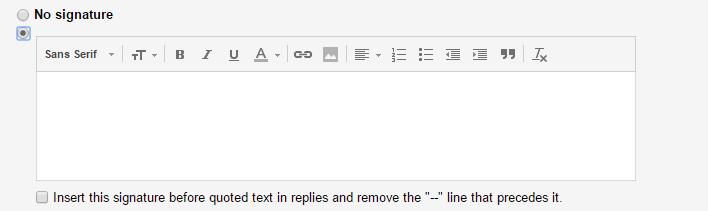
How to create custom signature in Gmail

Today, i want to show you how to create custom signature in Gmail by using several website. You can create your own by using HTML and CSS but im too lazy to code it


Steps:
  1. Find website which provide email signature template generator, for example (https://webapp.wisestamp.com/)

  2. Fill in the form with your detail

  3. There will be a preview of your detail. No need to download or signup, just copy the preview email like this: 


  4. Copy and Paste in Gmail Signature settings and DONE!


Find Nearest Location from list of Location Android

Simple snippet code what i do to find nearest location from current user location using google map v2 android api. 
Example
class BranchDetail{
    String name;
    double Longitude;
    double Latitude;

    //setter and getter
}

List<BranchDetail> bdList = new ArrayList<>();
// example
for(int x=0;x<100;x++){
    BranchDetail bd = new BrancDetail();

    // bd.setName("position 1");
    // bd.setLongitude(100.1);
    // bd.setLatitude(32.12);

    bdList.add(bd);
}

// example 2 using your webservice
bdList = restAPI.getBranchList();
Sort the list of location from nearest to farthest location from current user location
// im using FusedLocation to find current location
// Read more -> https://developers.google.com/android/reference/com/google/android/gms/location/FusedLocationProviderApi
mLastLocation = LocationServices.FusedLocationApi.getLastLocation(mGoogleApiClient);

private void SortLocationList(){
    Collections.sort(bdList, new Comparator<BranchDetail>() {
                public int compare(BranchDetail loc1, BranchDetail loc2) {
                    Location a = new Location("nearest");
                    Location b = new Location("target");
                    a.setLatitude(Double.parseDouble(loc1.getLatitude()));
                    a.setLongitude(Double.parseDouble(loc1.getLongitude()));

                    b.setLatitude(Double.parseDouble(loc2.getLatitude()));
                    b.setLongitude(Double.parseDouble(loc2.getLongitude()));

                    // compare with user location to find nearest location and sort
                    // mLastLocation is your current Location
                    // use GPS / Network provider to find your location or just use FusedLocation api
                    // mLastLocation must be find first before this process
                    return compares(mLastLocation.distanceTo(a), mLastLocation.distanceTo(b)) < 0 ?
                            compares(mLastLocation.distanceTo(a), mLastLocation.distanceTo(b)):
                            1;
                }
            });
}


Change the TOPNEAREST to any integer: ex : Top 3 nearest location just put 3
Assign marker to the choosen nearest
private void findNearestBranch() {
        if (mLastLocation != null) {

            SortLocationList();

            nearest = new Location("nearest");
            nearest.setLatitude(Double.parseDouble(bdList.get(0).getLatitude()));
            nearest.setLongitude(Double.parseDouble(bdList.get(0).getLongitude()));

            store = new ArrayList<>();
            final LatLngBounds.Builder builder = new LatLngBounds.Builder();

            for(int x=0;x<TOPNEAREST;x++){
                MarkerOptions marker = new MarkerOptions()
                        .position(new LatLng(Double.parseDouble(bdList.get(x).getLatitude()), Double.parseDouble(bdList.get(x).getLongitude())))
                        .icon(BitmapDescriptorFactory.fromResource(R.drawable.store_pin));
                Marker mark = googleMap.addMarker(marker);
                store.add(mark);
                builder.include(marker.getPosition());
            }

            final LatLngBounds bounds = builder.build();
            googleMap.animateCamera(CameraUpdateFactory.newLatLngBounds(bounds, 200));
        }
}

Student UiTM Sufo Auto Fill Form

SUFO FORM ONLY!!
Simple javascript
Budak UiTM yang malas nak tekan satu2 form SUFO
Cara2
1. Right Click -> Inspect Element
2. Tekan Console
3. Paste Code dibawah di console anda

for(y=1; y<=24; y++){
    var questionNo = window.frames[0].frames[1].document.getElementsByName('txtanswer'+y);
        questionNo[3].checked=true
}

window.frames[0].frames[1].document.getElementsByName('b2')[0].click();

Custom Tablayout Android


Simple tablayout hack to custom text, background and etc.. 
Below is the base init to custom tab layout
        Tablayout tabs = (TabLayout)findViewById(R.id.tabs);
        //cast the selected tablayout to viewgroup
        ViewGroup vg = (ViewGroup) tabs.getChildAt(0);
        //count how many tabs in tablayout
        int tabsCount = vg.getChildCount();
        //iterative each tab
        for (int j = 0; j < tabsCount; j++) {
            //Get all element in each tabs and cast to viewgroup
            ViewGroup vgTab = (ViewGroup) vg.getChildAt(j);
            //count the element in each tabs
            int tabChildsCount = vgTab.getChildCount();
            for (int i = 0; i < tabChildsCount; i++) {
                // cast to View
                View tabViewChild = vgTab.getChildAt(i);
            }
        }

How to use
To change the font of the tabs. Just use View instanceOf TextView
        // using built-in tablayout function to change indicator and text color but limited
        tabs.setTabTextColors(ContextCompat.getColor(this, R.color.md_grey_500), ContextCompat.getColor(this, R.color.white));
        tabs.setSelectedTabIndicatorColor(getResources().getColor(android.R.color.transparent));
Custom Tabs
        // init your font
        Typeface tf = Typeface.createFromAsset(getAssets(), "fonts/knockout-htf49-liteweight.ttf");
        ViewGroup vg = (ViewGroup) tabs.getChildAt(0);
        int tabsCount = vg.getChildCount();
        for (int j = 0; j < tabsCount; j++) {
            ViewGroup vgTab = (ViewGroup) vg.getChildAt(j);
            int tabChildsCount = vgTab.getChildCount();
            for (int i = 0; i < tabChildsCount; i++) {
                View tabViewChild = vgTab.getChildAt(i);
                // Get TextView Element
                if (tabViewChild instanceof TextView) {
                  // change font
                  ((TextView) tabViewChild).setTypeface(tf);
                  // change color
                  ((TextView) tabViewChild).setTextColor(getResources().getColor(R.color.white));
                  // change size
                  ((TextView) tabViewChild).setTextSize(18);
                  // change padding
                  tabViewChild.setPadding(0, 0, 0, 0);
                  //..... etc...
                }
            }
        }

To change background of the tabs
        ViewGroup vg = (ViewGroup) tabs.getChildAt(0);
        int tabsCount = vg.getChildCount();
        for (int j = 0; j < tabsCount; j++) {
            View view = vg.getChildAt(j);
            //change drawable for each tabs
            view.setBackgroundResource(R.drawable.backgroundtabs);

            //if you want to diff drawable for each tabs for example tabs is 4
            //if j == 0    view.setBackgroundResource(R.drawable.backgroundtabs1);  
            //if j == 1    view.setBackgroundResource(R.drawable.backgroundtabs2);
            //if j == 2    view.setBackgroundResource(R.drawable.backgroundtabs3);
            //if j == 3    view.setBackgroundResource(R.drawable.backgroundtabs4);

            ViewGroup vgTab = (ViewGroup) view;
            int tabChildsCount = vgTab.getChildCount();
            for (int i = 0; i < tabChildsCount; i++) {
                View tabViewChild = vgTab.getChildAt(i);
            }
        }
to change background of the tablayout
        <android.support.design.widget.TabLayout
          android:layout_height="wrap_content"
          android:layout_width="match_parent"
          android:id="@+id/tabs"
          android:background="@drawable/stripetab"    <-- create stripe background like example image
          app:tabTextAppearance="@style/CustomTabStyle"/>

NOTES
if you want to use scrollable mode ...etc, You need to set the tabs size (i dont know why). If not, it will looks ugly
       int width = 120; // width - width of tabs 
       int tabsize = 120 * tabcount; // tabcount - number of tabs
       ViewGroup vgTab = (ViewGroup) vg.getChildAt(j);
       if (sizeScreen() < tabsize) 
           vgTab.getLayoutParams().width = dpToPx(120);

       public int dpToPx(int dp) {
           DisplayMetrics displayMetrics = getResources().getDisplayMetrics();
           return Math.round(dp * (displayMetrics.xdpi / DisplayMetrics.DENSITY_DEFAULT));
       }

       public int sizeScreen(){
           return (int)((Resources.getSystem().getDisplayMetrics().widthPixels)/ Resources.getSystem().getDisplayMetrics().density);
       }


This is example of what im doing
    private void setupTabLayout(final TabLayout tabs) {
        tabs.setTabTextColors(ContextCompat.getColor(this, R.color.md_grey_500), ContextCompat.getColor(this, R.color.white));
        tabs.setSelectedTabIndicatorColor(getResources().getColor(android.R.color.transparent));

        if (sizeScreen()<tabsize){
            tabs.setTabMode(TabLayout.MODE_SCROLLABLE);
            tabs.setTabGravity(TabLayout.GRAVITY_FILL);
        }
        else{
            tabs.setTabMode(TabLayout.MODE_FIXED);
            tabs.setTabGravity(TabLayout.GRAVITY_FILL);
        }

        // CHANGE TAB TEXT FONT
        Typeface tf = Typeface.createFromAsset(getAssets(), "fonts/knockout-htf49-liteweight.ttf");
        ViewGroup vg = (ViewGroup) tabs.getChildAt(0);
        int tabsCount = vg.getChildCount();
        for (int j = 0; j < tabsCount; j++) {
            ViewGroup vgTab = (ViewGroup) vg.getChildAt(j);

            if (j==0){
                View view = vg.getChildAt(j);
                view.setBackgroundResource(R.drawable.backgroundtabs);
            }

            if (sizeScreen()<tabsize) {
                vgTab.getLayoutParams().width = dpToPx(120);
            }

            int tabChildsCount = vgTab.getChildCount();
            for (int i = 0; i < tabChildsCount; i++) {
                View tabViewChild = vgTab.getChildAt(i);
                if (tabViewChild instanceof TextView) {
                    ((TextView) tabViewChild).setTypeface(tf);
                    ((TextView) tabViewChild).setTextSize(18);
                    ((TextView) tabViewChild).setAllCaps(true);
                    ((TextView) tabViewChild).setSingleLine(true);
                    //set the text to marquee if text longer than tabs size
                    ((TextView) tabViewChild).setEllipsize(TextUtils.TruncateAt.MARQUEE);
                    ((TextView) tabViewChild).setMarqueeRepeatLimit(100);
                    if (j==0){
                        tabViewChild.setPadding(0, 0, 0, 0);
                    }
                    else {
                        tabViewChild.setPadding(0, padding, 0, 0);
                    }
                }
            }
        }

        tabs.setOnTabSelectedListener(new TabLayout.OnTabSelectedListener() {
            ViewGroup vg = (ViewGroup) tabs.getChildAt(0);

            @Override
            public void onTabSelected(TabLayout.Tab tab) {
                ViewGroup vgTab = (ViewGroup) vg.getChildAt(tab.getPosition());
                if (tab.getPosition()==0)
                    vg.getChildAt(tab.getPosition()).setBackgroundResource(R.drawable.backgroundtabs);

                else if (tab.getPosition()==tabcount-1)
                    vg.getChildAt(tab.getPosition()).setBackgroundResource(R.drawable.backgroundtabs_last);

                else
                    vg.getChildAt(tab.getPosition()).setBackgroundResource(R.drawable.backgroundtabs_middle);

                int tabChildsCount = vgTab.getChildCount();
                for (int i = 0; i < tabChildsCount; i++) {
                    View tabViewChild = vgTab.getChildAt(i);
                    if (tabViewChild instanceof TextView) {
                        tabViewChild.setPadding(0, 0, 0, 0);
                    }
                }
                viewPager.setCurrentItem(tab.getPosition());
            }

            @Override
            public void onTabUnselected(TabLayout.Tab tab) {
                ViewGroup vgTab = (ViewGroup) vg.getChildAt(tab.getPosition());
                vg.getChildAt(tab.getPosition()).setBackgroundResource(0);
                int tabChildsCount = vgTab.getChildCount();
                for (int i = 0; i < tabChildsCount; i++) {
                    View tabViewChild = vgTab.getChildAt(i);
                    if (tabViewChild instanceof TextView) {
                        tabViewChild.setPadding(0, padding, 0, 0);
                    }
                }
            }

            @Override
            public void onTabReselected(TabLayout.Tab tab) {

            }
        });
    }